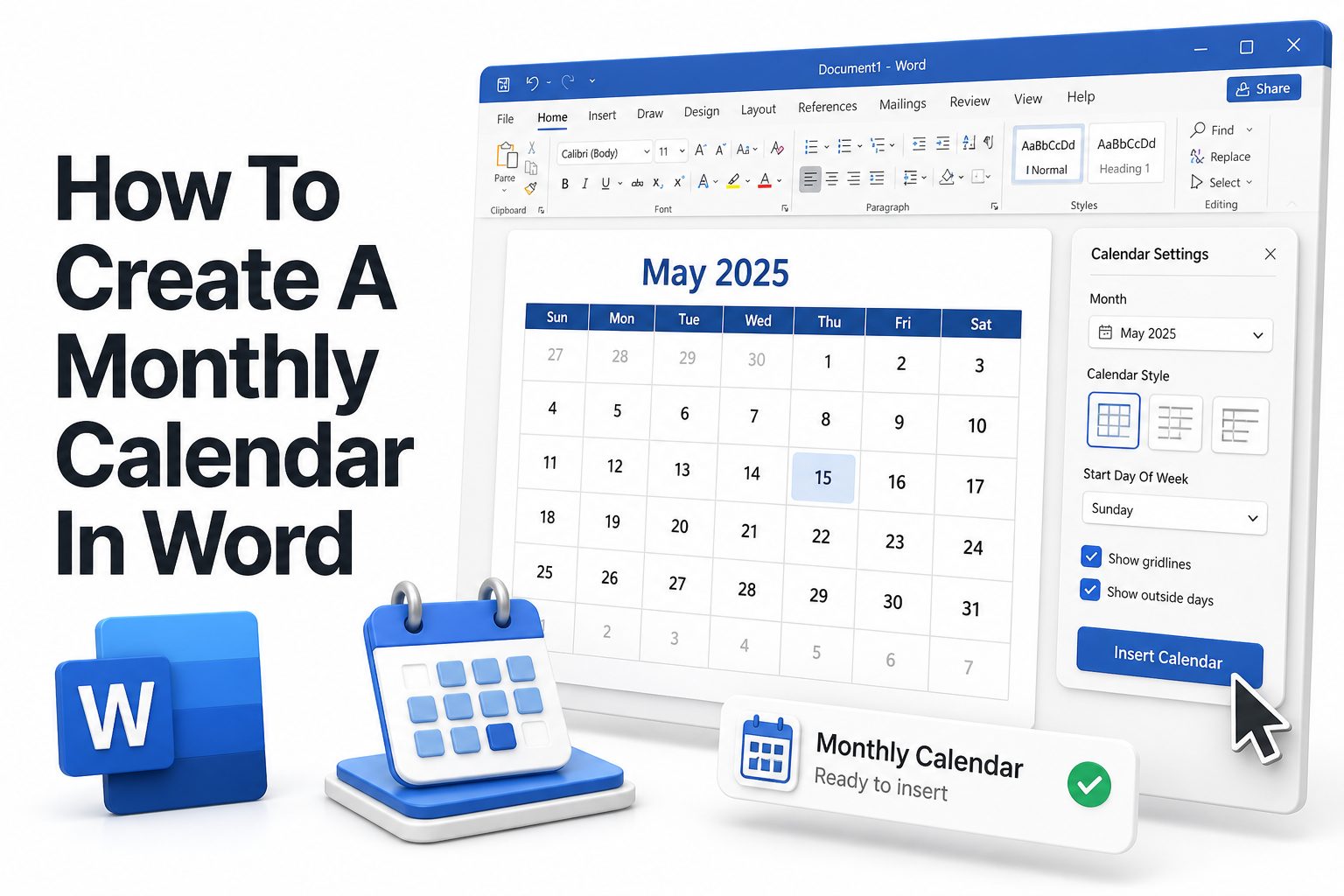
Planning a month on paper still has a practical charm. Whether you manage family schedules, classroom activities, work deadlines, meal plans, or personal goals, a printable calendar gives you a clear view of what is coming without opening another app. Microsoft Word is often the easiest tool for this because most people already have it, and it gives enough layout control to create something clean, useful, and printable.
If you want to know how to create a monthly calendar in Word, you have two reliable options: start with a ready-made template or build one manually with tables. Templates are faster, while custom tables give you more control over size, colors, fonts, notes, and branding. This guide walks through both methods, plus formatting tips that help your calendar look polished instead of rushed. By the end, you will know how to make a monthly calendar that fits your exact purpose.
Why Microsoft Word Works Well for Monthly Calendars
Microsoft Word is not only for letters and reports. Its table tools, page layout settings, font controls, and printable formatting features make it a strong choice for simple calendar design. You can create a clean monthly grid, add notes, change colors, and print without needing design software.
Word also works well when you need a calendar that can be shared as a document. You can send it as a Word file, export it as a PDF, or print copies for a team, classroom, household, or office. That flexibility makes it useful for both personal and professional planning.
Choose Between a Template and a Custom Calendar
The fastest way to create a monthly calendar is by using one of Word’s built-in calendar templates. These are useful when you need something ready quickly and do not want to adjust every detail from scratch. Many templates already include monthly layouts, date blocks, and basic styling.
A custom calendar is better when you need full control. You can choose the exact page orientation, table size, colors, fonts, spacing, and note areas. This method takes longer, but the result can match your brand, workflow, classroom style, or personal planning system.
Quick Benefits of Making a Calendar in Word
- Easy to print on standard letter or A4 paper
- Simple to edit dates, holidays, and reminders
- Works well for home, school, and office planning
- Can be saved as a reusable monthly calendar template
- Allows custom colors, fonts, logos, and note sections
- Can be exported as a PDF for sharing
- Requires no advanced design software
Set Up the Page Before Building the Calendar
Before adding dates, set up the document correctly. Open a blank Word document and go to the layout settings. For most monthly calendars, landscape orientation works best because it gives the grid more horizontal space. Portrait orientation can work if you prefer a narrow calendar with a large notes area.
Next, adjust the margins. Narrow margins give you more room for date boxes, while normal margins create more white space around the page. If you plan to print the calendar, keep enough margin so nothing gets cut off by your printer.
Create a Monthly Calendar with a Word Template
To use a template, open Word and select New. Type “monthly calendar” into the template search bar. Word will show several calendar designs, including simple monthly grids, yearly calendars, and themed layouts. Choose one that closely matches the style and purpose you need.
After opening the template, edit the month, dates, colors, and any placeholder text. Some templates update easily, while others require manual changes. Always review the full month carefully, especially the first day of the week and the number of days in the month.
Template Versus Custom Calendar Comparison
Option | Best For | Main Advantage | Main Limitation
Template | Fast planning | Saves time | Less design control
Custom table | Personalized layouts | Full control | Takes more setup
Printable calendar | Offices and homes | Easy sharing | Needs print testing
Branded calendar | Businesses | Professional look | Requires more formatting
Build a Calendar Grid Manually with Tables
If you want a more flexible layout, create the calendar with a table. Insert a table with seven columns for the days of the week. Most months need six rows below the weekday header to fit all dates properly, so a seven-column by seven-row table usually works well.
Use the first row for weekday names. Then enter the dates in the correct boxes, starting under the right weekday. Leave blank cells before the first day of the month and after the last day. This gives your calendar the same familiar structure people expect.
Adjust Row Height and Column Width
Once the table is in place, adjust the row height so each date box has enough room for appointments, events, or notes. Select the table, open table properties, and set a fixed row height. A monthly calendar usually looks better when all date cells are equal.
Column width should also be even. Word often adjusts columns automatically, but manual settings give better results. Make sure each weekday column has the same width so the calendar feels balanced and professional when printed or exported.
Tips for a Cleaner Calendar Grid
- Use landscape orientation for more writing space
- Keep all date boxes the same size
- Use bold text for weekday labels
- Add light borders instead of heavy black lines
- Leave blank space inside each date box for notes
- Use a slightly larger font for the month title
- Test print before making multiple copies
Add the Month Title and Weekday Labels
A strong calendar layout needs a clear month title. Place the month and year above the table, such as “March 2027.” Center the title and use a font size that stands out without overwhelming the page. A simple bold style usually looks cleaner than decorative fonts.
Weekday labels should be easy to scan. Use short labels like Monday, Tuesday, or abbreviated versions such as Mon, Tue, and Wed. Keep the labels consistent and aligned. If your audience expects the week to start on Sunday, use that format.
Enter Dates Accurately
Accuracy matters more than design. Check which weekday the month starts on before typing dates. You can use your computer calendar, Outlook, Google Calendar, or another trusted calendar source. Place each date in the top-left corner of its cell for a familiar layout.
After entering all dates, review the sequence carefully. Months with 31 days, leap-year February, and calendars that start on Saturday or Sunday are the most common places for mistakes. A quick review prevents embarrassing errors before printing or sharing.
Date Entry Checklist
- Confirm the correct month and year
- Check the first weekday of the month
- Count the total number of days
- Include February 29 only in leap years
- Leave unused cells blank or lightly shaded
- Review the full calendar before printing
- Save a reusable copy before adding events
Format the Calendar for Readability
Readable calendars use contrast wisely. Black or dark gray text on a white background is usually best for printing. If you add color, use it for headers, weekends, holidays, or special categories. Too many colors can make the calendar harder to scan.
Keep fonts simple. Calibri, Aptos, Arial, and Georgia all work well depending on the tone you want. Use one font family for most of the calendar and change only size, weight, or color for emphasis. Consistency makes the layout feel intentional.
Add Notes, Reminders, and Event Space
A monthly calendar becomes more useful when it includes room for notes. You can add a narrow notes column beside the calendar or a notes section beneath it. This works well for monthly goals, reminders, bills, meal ideas, project deadlines, or school activities.
Inside date boxes, keep event text short. Use phrases like “Dentist 2 PM” or “Report due” instead of full sentences. If a day has several items, use line breaks within the cell. This keeps the calendar practical without cluttering the page.
Useful Calendar Add-Ons
- Notes section for monthly reminders
- Goal area for personal planning
- Mini task list for key deadlines
- Holiday labels in a different color
- Small logo for business calendars
- Footer with contact details or class name
- Shaded weekends for faster scanning
Customize Colors and Borders
Borders shape the look of your calendar. Thin gray borders usually look more polished than thick black ones. You can keep the outer border slightly stronger and use lighter inner lines. This makes the grid visible without making the page feel heavy.
Color should support the purpose of the calendar. A family calendar might use warm accent colors, while a business calendar may need brand colors. Classroom calendars can use brighter shades, but the dates and writing space should still remain easy to read.
Highlight Weekends and Holidays
Weekend shading helps people scan the calendar faster. You can lightly shade Saturday and Sunday columns or use a different date color. Keep the shading subtle so printed text remains legible. Pale gray, soft blue, or light green often works well.
Holidays can be marked with bold text, color, or a small note inside the date box. Avoid crowding the calendar with too many labels. If you need a full holiday list, place it in the notes section rather than squeezing everything into the grid.
Color Formatting Ideas
Purpose | Suggested Style | Best Use
Work calendar | Gray lines with blue accents | Meetings and deadlines
Family planner | Soft colors by category | Activities and reminders
School calendar | Clear headers and bright highlights | Classes and events
Business calendar | Brand colors and logo | Client-facing schedules
Minimal calendar | Black, white, and light gray | Printable planning
Make the Calendar Printable
Printing should be considered before the design is finished. Go to Print Preview and check whether the full calendar fits on one page. If parts are cut off, reduce margins, shrink the title, or adjust table height. Do not rely only on the editing view.
Choose landscape printing if your calendar uses a wide grid. Also check printer settings such as paper size, scaling, and margins. Selecting “fit to page” can help, but it may make text smaller. A test print is the safest way to catch layout problems.
Save the Calendar as a Reusable Template
Once you have a layout you like, save a clean version before adding month-specific events. This gives you a reusable monthly calendar file. Next month, you can open the saved file, update the title, adjust the dates, and keep the same design.
To save it as a template, choose Save As and select Word Template if available. You can also keep a regular Word document named “Monthly Calendar Template.” Store it somewhere easy to find, such as a planning folder or shared office drive.
Printable Calendar Quality Checklist
- Calendar fits on one page
- Text is readable after printing
- Borders are visible but not too dark
- Dates are accurate and aligned
- Notes section has enough space
- Colors print clearly in black and white
- PDF version looks the same as the Word file
Create a Calendar for Work Planning
A work calendar should be clear and efficient. Use restrained colors, consistent fonts, and enough space for deadlines, meetings, campaign dates, or reporting cycles. If several people will use it, avoid overly personal styling and keep the format easy to edit.
You can add sections for priorities, weekly targets, or project milestones. A small sidebar can list key deliverables for the month. For more productivity ideas, see [Internal Link: Monthly Planning Templates] as a helpful next step for organizing recurring work.
Create a Calendar for Home or Family Use
A family calendar often needs more flexibility than a work calendar. You may want space for appointments, school events, meal planning, sports practices, birthdays, and bill reminders. Color coding can help separate people or categories, but keep the system simple enough to maintain.
For example, use one color for school events, one for health appointments, and one for household tasks. Add a notes area for groceries, monthly goals, or important reminders. A printed family calendar works especially well on a fridge, bulletin board, or home office wall.
Common Calendar Uses
- Monthly work deadlines
- School assignment planning
- Family schedules and appointments
- Meal planning and grocery reminders
- Fitness goals and habit tracking
- Editorial and content calendars
- Bill payments and budget dates
Add Images, Icons, or a Logo
Word lets you insert images, icons, and logos to personalize your calendar. For business use, place a small logo in the header or footer. Keep it away from the calendar grid so it does not reduce writing space or distract from the dates.
For personal calendars, small icons can mark birthdays, travel, appointments, or special events. Use them sparingly. Too many graphics make the calendar look busy and can create printing issues. A clean layout with a few useful visuals usually works best.
Use Tables for Better Alignment
Tables are the backbone of a good Word calendar because they keep everything aligned. Instead of using tabs, spaces, or text boxes, use table cells for the date grid. This prevents items from shifting unexpectedly when you edit text or change fonts.
You can also use nested tables for notes or task sections, but keep the layout simple. Too many table layers can become difficult to edit. If the calendar needs many sections, consider using one main calendar table and separate simple blocks for notes.
Formatting Mistakes to Avoid
- Using too many font styles
- Making borders too thick
- Adding large images inside date boxes
- Forgetting to check print preview
- Leaving dates misaligned
- Using colors that print poorly
- Crowding each date with long notes
Export the Calendar as a PDF
When your calendar is finished, exporting it as a PDF helps preserve the layout. This is useful if you want to email the calendar, upload it to a shared folder, or print it from another computer. PDFs reduce the risk of accidental formatting changes.
To export, choose Save As or Export, then select PDF. Open the PDF before sharing and check the page size, spacing, and text clarity. If anything looks off, return to the Word file, adjust the layout, and export again.
Keep a Monthly Calendar Organized Over Time
If you create calendars regularly, use a consistent naming system. For example, save files as “2027-03 Monthly Calendar” or “March 2027 Work Calendar.” This makes old calendars easier to find and keeps your planning folder organized.
You can also keep one blank template and duplicate it each month. Update dates before adding events so you do not accidentally overwrite the original file. For teams, store the template in a shared folder and label the current month clearly.
Simple File Naming Ideas
- 2027-01 Monthly Calendar
- March 2027 Family Planner
- Q2 Campaign Calendar April
- Classroom Calendar September 2027
- Editorial Calendar June 2027
- Printable Calendar Template
- Blank Monthly Calendar Word
Conclusion
Creating a calendar in Microsoft Word is a practical skill that saves time, improves planning, and gives you control over how your schedule looks on the page. You can start with a built-in template when speed matters, or build a custom table when you want a layout tailored to work, school, family, or personal planning.
The best calendars are simple, accurate, and easy to read. Set the page layout first, build a balanced grid, check the dates carefully, and use formatting choices that support clarity. Add notes, colors, holidays, or a logo only when they make the calendar more useful. Once your layout works, save it as a reusable template so future months take only a few minutes to prepare. With these steps, how to create a monthly calendar in word becomes a repeatable process rather than a one-time formatting task.
FAQ
Can I make a calendar in Word without a template?
Yes, you can make a calendar manually by inserting a seven-column table, adding weekday labels, and entering dates in the correct cells. This gives you more control over layout, spacing, colors, and notes.
What page orientation is best for a monthly calendar?
Landscape orientation usually works best because it gives the calendar grid more width. Portrait can work for compact calendars or layouts with a larger notes section below the dates.
How do I make my Word calendar fit on one page?
Use landscape orientation, narrow margins, fixed table row heights, and print preview. If the calendar still does not fit, reduce title size, shorten notes, or adjust cell spacing before printing.
Can I save a Word calendar as a template?
Yes, save a clean version before adding monthly events. You can save it as a Word Template file or keep a regular document named clearly as your reusable calendar template.
Is a Word calendar better than an Excel calendar?
Word is better for printable, text-focused calendars with simple formatting. Excel is better for formulas, recurring calculations, and data-heavy schedules. Choose based on whether design or calculation matters more.
0 Comments