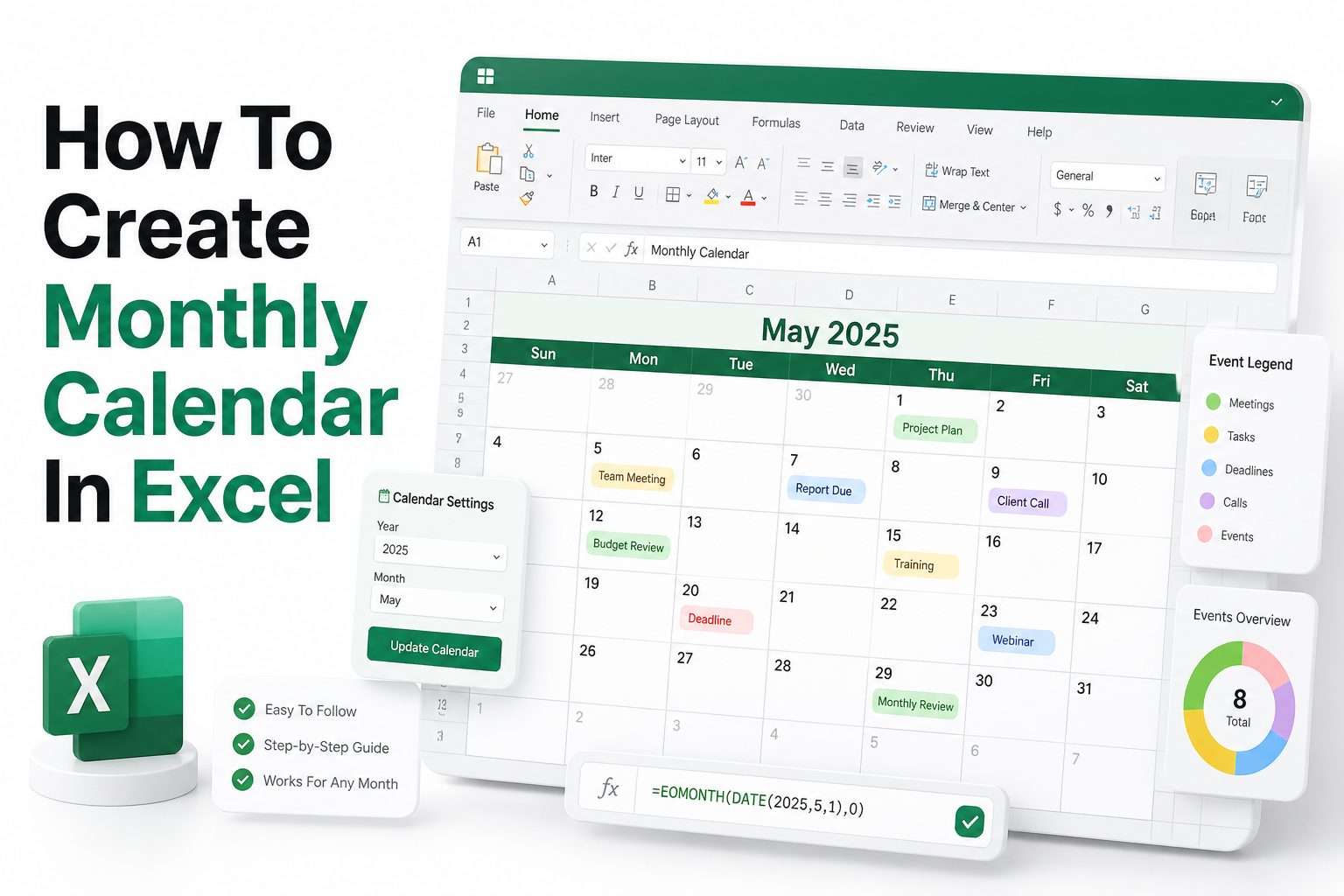
If you manage deadlines, appointments, team schedules, content plans, or personal tasks, Excel can be a surprisingly practical calendar tool. Many people search for how to create monthly calendar in excel because they want something more flexible than a printed planner and more customizable than a standard calendar app. Excel gives you control over layout, colors, formulas, notes, dates, and recurring events without needing advanced software.
A monthly calendar in Excel can be as simple as a clean grid with dates or as detailed as a dynamic planner that updates when you change the month and year. You can use it for work schedules, school assignments, family planning, meal preparation, bill tracking, or editorial calendars. Once you learn the basic structure, you can reuse the same file every month, adjust it quickly, and build a calendar that fits the way you actually plan.
Why Use Excel for a Monthly Calendar
Excel is useful for calendar creation because it combines structure with flexibility. You can design a monthly view, add notes, apply color coding, and calculate dates using formulas. Unlike a paper calendar, you can duplicate sheets, filter information, and update details without starting over.
It also works well for people who already use spreadsheets in their daily workflow. If your tasks, budgets, schedules, or reports are already in Excel, keeping your calendar in the same file saves time. You can connect planning with tracking and keep everything in one organized workbook.
What You Need Before You Start
Before creating your calendar, decide whether you want a static calendar or a dynamic one. A static calendar is manually filled in for one specific month. A dynamic calendar uses formulas so the dates update when you change the month or year.
You should also choose the calendar’s main purpose. A personal planner may need space for notes, while a project calendar may need columns for deadlines, owners, and status. Planning the purpose first helps you avoid rebuilding the layout later.
Quick Planning Checklist
- Choose the month and year for your calendar
- Decide between a static or dynamic layout
- Pick a Sunday-start or Monday-start week
- Leave enough space for notes or events
- Use consistent colors for categories
- Save a blank version as a reusable template
Create a Basic Monthly Calendar Layout
Start by opening a blank Excel worksheet. In the first row, add the month and year as a title, such as September 2026. Merge several cells across the top if you want the heading centered above the calendar grid.
Below the title, enter the days of the week across seven columns. Use one row for Sunday through Saturday, or Monday through Sunday if that matches your planning style. Then create five or six rows beneath the weekday labels for the calendar dates.
Set Up Rows and Columns for Better Readability
Adjust column widths so each day has enough space for appointments or short notes. A width between 15 and 20 usually works well for a clean monthly view. Increase row height to make each date box feel like a calendar square.
Use borders around the date cells to make the grid easy to scan. Thin borders are usually enough, but you can use a slightly thicker border around the full calendar area. Keep the design simple so the calendar stays practical.
Add Dates Manually for a Simple Calendar
For a static calendar, check which weekday the first day of the month falls on. Enter the number 1 in the correct cell, then continue numbering across the row and down through the remaining weeks until the month is complete.
This method is fast and easy when you only need one month. It is also useful for printed calendars, classroom schedules, or simple planning sheets. The downside is that you must update the dates manually for each new month.
Static Calendar Compared With Dynamic Calendar
Calendar Type Best For Main Advantage Main Limitation
Static calendar One-time monthly planning Fast to create Must be edited manually
Dynamic calendar Reusable monthly planning Updates automatically Needs formulas
Template calendar Quick professional layout Saves setup time May need customization
Shared calendar Team schedules Easy collaboration Requires file management
Create a Dynamic Monthly Calendar With Formulas
A dynamic calendar is better if you want to reuse the workbook every month. Start by placing the month number in one cell and the year in another. For example, use B1 for the month and B2 for the year.
Then use Excel’s DATE function to calculate the first day of that month. A formula such as DATE(B2,B1,1) returns the first date based on your selected month and year. This becomes the foundation for building an automatic calendar grid.
Calculate the First Weekday
To place the first date correctly, use the WEEKDAY function. This tells Excel which day of the week the first date falls on. Depending on your week format, you may use Sunday-start or Monday-start logic.
For a Sunday-start calendar, WEEKDAY usually works naturally. For a Monday-start calendar, use the return type that treats Monday as day one. This small decision matters because it controls where the dates appear in the calendar grid.
Fill the Calendar Grid Automatically
Once you know the first date and its weekday position, you can create formulas for the rest of the grid. Each cell can calculate whether it belongs to the current month or should remain blank. This keeps the calendar clean.
A common approach is to generate sequential dates across the grid, then hide dates outside the chosen month. With the right formula structure, changing the month or year updates the entire calendar instantly without manual editing.
Useful Excel Functions for Calendar Building
- DATE creates a valid date from year, month, and day values
- WEEKDAY identifies the day of the week for a date
- EOMONTH finds the last day of a month
- IF controls whether a calendar cell shows a date or stays blank
- TEXT formats dates, months, and weekdays neatly
- TODAY highlights the current date when paired with conditional formatting
Format the Calendar for a Professional Look
Good formatting makes your calendar easier to use. Use bold text for the month title and weekday row, then keep date numbers smaller and clean. Align dates toward the top-left corner of each calendar box for a familiar planner feel.
Avoid using too many colors at once. Two or three accent colors are usually enough for categories such as meetings, deadlines, and personal reminders. A restrained design looks more polished and keeps attention on the actual schedule.
Add Borders, Shading, and Spacing
Apply light shading to the weekday row so it stands apart from the date cells. You can also shade weekends lightly if they need to be visually separate. These small details make the calendar easier to scan at a glance.
Use consistent spacing throughout the calendar. Uneven row heights or crowded text can make the sheet feel messy. If you plan to print the calendar, check page layout early so your formatting does not break across pages.
Use Conditional Formatting to Highlight Dates
Conditional formatting can automatically highlight today’s date, weekends, deadlines, or important events. For example, you can create a rule that changes the background color when a cell matches the TODAY function.
You can also highlight dates based on a list of events in another part of the workbook. This is useful for project plans, editorial schedules, payment due dates, and staff availability. It turns a basic calendar into a more useful planning tool.
Formatting Tips for a Cleaner Calendar
- Keep the title large but not oversized
- Use readable fonts such as Calibri, Aptos, Arial, or Segoe UI
- Apply light borders instead of heavy gridlines
- Use one color system consistently
- Leave enough white space for notes
- Preview the calendar before printing
Add Events, Notes, and Reminders
A monthly calendar becomes more useful when it includes event details. You can type short notes directly into each date box, such as client call, invoice due, or team meeting. Keep entries brief so the calendar remains readable.
For more detailed planning, create a separate event list beside or below the calendar. Include columns for date, event name, category, priority, and notes. This gives you more space while keeping the monthly grid clean and focused.
Connect Event Lists to Calendar Dates
If you are comfortable with formulas, you can pull events from a list into the correct calendar date. Functions such as FILTER or TEXTJOIN can help display matching events inside each date cell, depending on your Excel version.
This setup works especially well for content calendars, employee schedules, and recurring monthly tasks. It takes longer to build, but it saves time later because you only update the event list instead of manually editing calendar boxes.
Color Code Different Event Types
Color coding helps you identify priorities quickly. For example, use one color for deadlines, another for meetings, and another for personal tasks. Keep the legend visible so anyone using the calendar knows what each color means.
Do not rely on color alone if the calendar will be shared. Add short labels or category names as well. This improves clarity for people who print in black and white or have difficulty distinguishing certain colors.
Practical Calendar Uses in Excel
Use Case Helpful Feature
Project deadlines Conditional formatting
Content planning Event list with categories Blog
Family scheduling Color-coded notes
Bill tracking Recurring reminders
Staff planning Shared workbook
Make the Calendar Printable
If you plan to print your monthly calendar, use Page Layout settings before finalizing the design. Set the orientation to landscape if you need wider date boxes. Adjust margins so the calendar fills the page without being cut off.
Use Print Area to select only the calendar section. Then use scaling options to fit the calendar on one page. This prevents Excel from splitting your monthly view across multiple pages, which can make printed calendars difficult to use.
Check Page Breaks and Print Preview
Print Preview is essential because Excel worksheets can look different on paper than on screen. Check whether text fits inside each date box and whether borders appear clearly. Make small adjustments before printing several copies.
If some notes are too long, shorten them or move details to a separate notes section. A printed monthly calendar should be easy to read from a desk or wall, not packed with tiny text that slows people down.
Save the Calendar as a Reusable Template
After you build a layout you like, save a blank version as a template. Remove month-specific events but keep formulas, formatting, borders, and category colors. This gives you a clean starting point for future months.
You can also duplicate the worksheet within the same workbook for each month. Rename tabs with month names, such as Jan 2027 or Feb 2027. This keeps a full year of planning in one organized file.
Printing Checklist
- Set orientation to landscape when needed
- Define the correct print area
- Fit the calendar to one page wide
- Check margins before printing
- Preview borders and text size
- Remove unnecessary gridlines
- Save a PDF copy for sharing
Use an Excel Calendar Template
Excel includes built-in calendar templates that can save setup time. From the start screen, search for calendar and choose a monthly layout that matches your needs. Templates are useful when you want a polished design quickly.
The best template is one you can edit easily. Look for clean formatting, enough writing space, and simple formulas. If a template has too many decorative elements, it may look nice but become harder to use every day.
Customize a Template for Your Workflow
After choosing a template, update the colors, fonts, labels, and categories to fit your purpose. You can add a notes area, holiday list, task section, or event tracker. Small changes often make the template much more practical.
If you create calendars often, keep one master version untouched. Duplicate it whenever you need a new month or project. This prevents accidental formula changes and gives you a reliable backup layout.
When to Build Your Own Instead
A custom calendar is better when you need specific formulas, reporting, or event connections. For example, a marketing team may need campaign categories, owner names, publish dates, and status tracking tied to the monthly view.
Building your own also helps when company branding matters. You can match fonts, colors, and layout standards more closely than most downloaded templates allow. For more spreadsheet layout ideas, see our Excel productivity tips guide.
Template or Custom Calendar Decision Guide
Choose a template when:
-
- You need a calendar quickly
- Basic monthly planning is enough
- You prefer ready-made formatting
- You do not need complex formulas
Build your own when:
- You want automatic month changes
- You need event tracking
- You want full control over layout
- You need a reusable planning system
Add Holidays and Important Dates
Holidays can be added manually or stored in a separate list. A separate holiday list is better because it keeps your calendar flexible. You can update dates once and use formulas or formatting to highlight them automatically.
For business calendars, include company holidays, payroll dates, reporting deadlines, and industry events. For personal calendars, add birthdays, anniversaries, school breaks, and travel dates. These details make your calendar more useful throughout the month.
Create a Holiday List
Place your holiday list on a separate worksheet with columns for date, holiday name, and category. This keeps the main calendar uncluttered. You can then use lookup formulas or conditional formatting to connect those dates to the calendar view.
If you manage multiple regions, add a location column. This is useful for remote teams, international clients, or school calendars with different schedules. A structured list gives you more control than typing holiday names directly into calendar cells.
Highlight Holidays Automatically
Conditional formatting can compare each calendar date against your holiday list. When a match is found, Excel can apply a fill color, bold text, or border. This makes holidays stand out without manual formatting every month.
You can use similar rules for vacation days, payment dates, or recurring maintenance tasks. Once set up, the calendar becomes easier to maintain because Excel handles the visual reminders for you.
Common Mistakes to Avoid
- Making date boxes too small for real notes
- Using too many colors without a clear legend
- Forgetting to check print preview
- Typing dates as text instead of real Excel dates
- Overcomplicating formulas for a simple calendar
- Editing formula cells without keeping a backup
Build a Monthly Calendar for Work Planning
Work calendars often need more than dates. Add areas for weekly goals, major deadlines, meetings, and follow-up tasks. This turns the calendar into a planning dashboard rather than a basic date grid.
For teams, include owner names or initials beside key tasks. You can also add status labels such as planned, in progress, waiting, and complete. These labels make the calendar more useful during weekly planning meetings.
Create a Content Calendar in Excel
A content calendar can track blog posts, newsletters, social media updates, and publishing deadlines. Add fields for topic, keyword, writer, editor, due date, publish date, and status. The monthly view helps the team see workload and timing.
For example, a blog team might place publication dates on the calendar and keep article details in a table below. You can also link the calendar to our content planning spreadsheet guide for a more detailed workflow.
Plan Employee Schedules
Excel is also practical for shift planning. A monthly calendar can show who is working each day, who is unavailable, and where coverage gaps exist. Use consistent abbreviations so the calendar remains readable.
For larger teams, keep a separate employee list and use data validation for names or shift codes. This reduces typing errors and helps keep schedules consistent across the month.
Work Calendar Enhancements
Feature Best Use
Status labels Project tracking
Owner initials Team planning
Data validation Shift schedules
Notes section Meeting follow-ups
Color categories Priority planning
Protect and Share Your Calendar
If your calendar contains formulas, protect the worksheet before sharing it. Lock formula cells and leave event entry cells editable. This prevents accidental changes that could break the calendar layout or date calculations.
When sharing with a team, decide whether people can edit the file or only view it. For collaborative planning, store the workbook in OneDrive or SharePoint so multiple people can work from the same version.
Use Comments and Notes Carefully
Excel comments can be helpful when a calendar cell needs extra context. For example, you might add meeting details, location information, or instructions without crowding the visible calendar box.
Use comments sparingly. If every date has a long hidden note, the calendar becomes harder to manage. For detailed records, keep a separate table and use the monthly calendar as the visual summary.
Keep a Backup Version
Before changing formulas or formatting, save a backup copy. This is especially important if the calendar is used by a team or connected to event lists. One broken formula can affect the entire month view.
A simple version naming system helps. Use names such as Monthly Calendar Template, Monthly Calendar Working Copy, and Monthly Calendar Archive. Clear file names make it easier to find the right version later.
Calendar Maintenance Tips
- Keep one master template unchanged
- Protect formula cells before sharing
- Use clear file names with month and year
- Archive completed calendars
- Review recurring events each month
- Remove outdated notes before duplicating sheets
Conclusion
Creating a calendar in Excel gives you a flexible way to plan, track, print, and share your month. You can start with a simple manual grid, use formulas for an automatic layout, or customize a template to save time. The best option depends on how often you need the calendar and how much detail you want to manage.
For one-time use, a static layout is usually enough. For ongoing planning, a dynamic version saves effort and reduces mistakes. Add thoughtful formatting, event lists, conditional highlights, and print settings to make the calendar easier to use. Once you know how to create monthly calendar in excel, you can build a reusable planning tool for work, home, projects, content, schedules, and deadlines without relying on separate calendar software.
FAQ
Can I make a calendar in Excel without formulas?
Yes, you can create a manual calendar by building a seven-column grid and typing the dates yourself. This works well for one month, printed planners, or simple schedules that do not need automatic updates.
How do I make an Excel calendar update automatically?
Use DATE, WEEKDAY, IF, and related date formulas to generate the calendar grid. When the month or year cell changes, the formulas recalculate the dates and update the monthly layout automatically.
Is it better to use an Excel calendar template?
A template is better when you need a quick, polished calendar. Building your own is better when you need custom formulas, event tracking, brand formatting, or a reusable system tailored to your workflow.
Can I add events to an Excel monthly calendar?
Yes, you can type events directly into date boxes or manage them in a separate event table. A separate table is cleaner for busy calendars because it keeps details organized and easier to update.
How do I print a monthly calendar from Excel?
Select the calendar area, set it as the print area, choose landscape orientation if needed, and use scaling to fit the calendar on one page. Always check Print Preview before printing.
0 Comments